Moving a domain can be one of those jobs where you only discover what was connected to it
after something stops working.
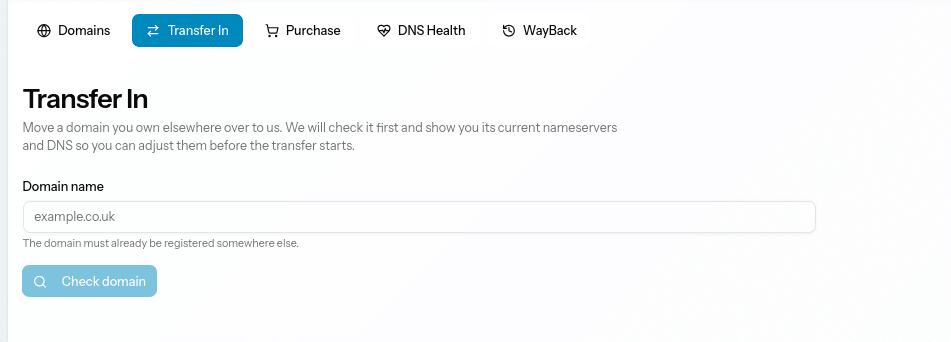
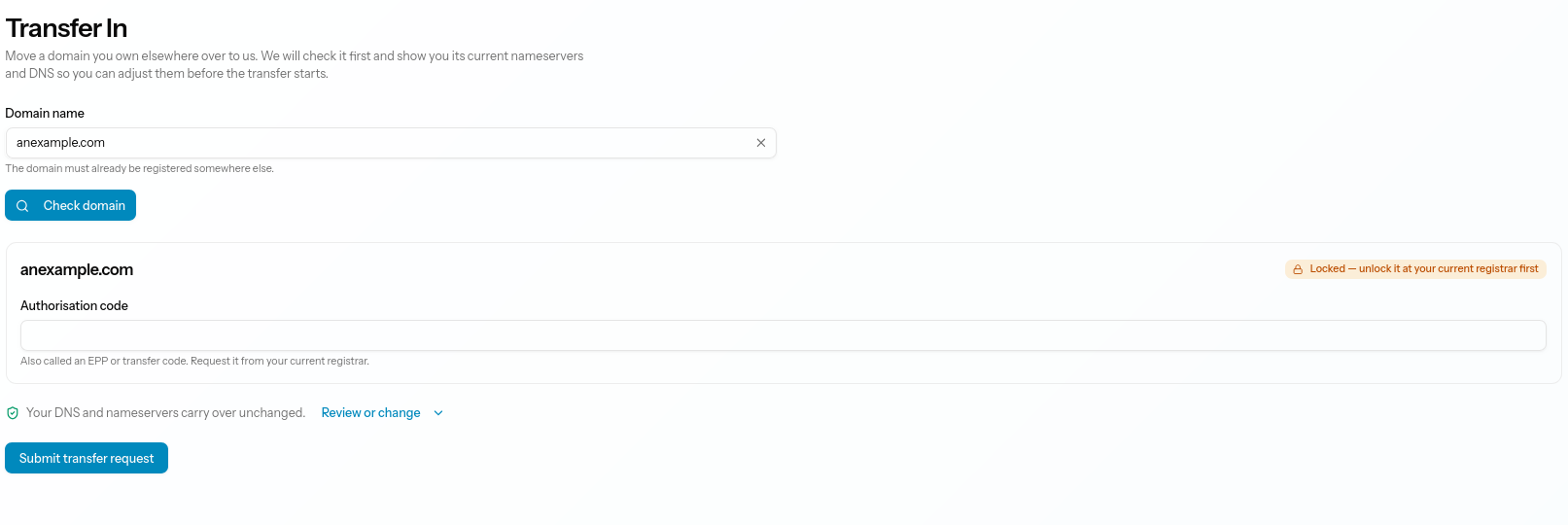
That’s why the Transfer In section in the client portal checks the domain before you submit
anything.
Enter the domain you want to move and you’ll be able to see its current nameservers and DNS
records. That gives you a chance to spot anything important, especially if the domain is
being used for email as well as a website.
You can review the settings, change anything that needs changing, choose the account the
domain should belong to, and then submit the transfer.
Some domains have an extra step with the current registrar. You might need to change an IPS
tag, for example. If that happens, the portal will tell you what to do next.
It’s a much nicer experience than guessing, sending a support email, and hoping nothing
important gets lost along the way.
If you’re already using the client portal, you’ll know how handy it is to have this
information in one place. If you haven’t tried it yet, this is a good place to start.
Go to Websites > Transfer In.